Scratches, dust & small creases
Ask AI to reduce thin scratch lines, scattered spots, and light fold marks. A crease over a face needs closer review than a mark in the background.
Best starting point: the photo is mostly intact.
Give old photos a clearer future.
Repair visible scratches, soften signs of damage, and bring contrast back to faded family photos. Upload a scan, restore it with AI, and compare the result with the original.
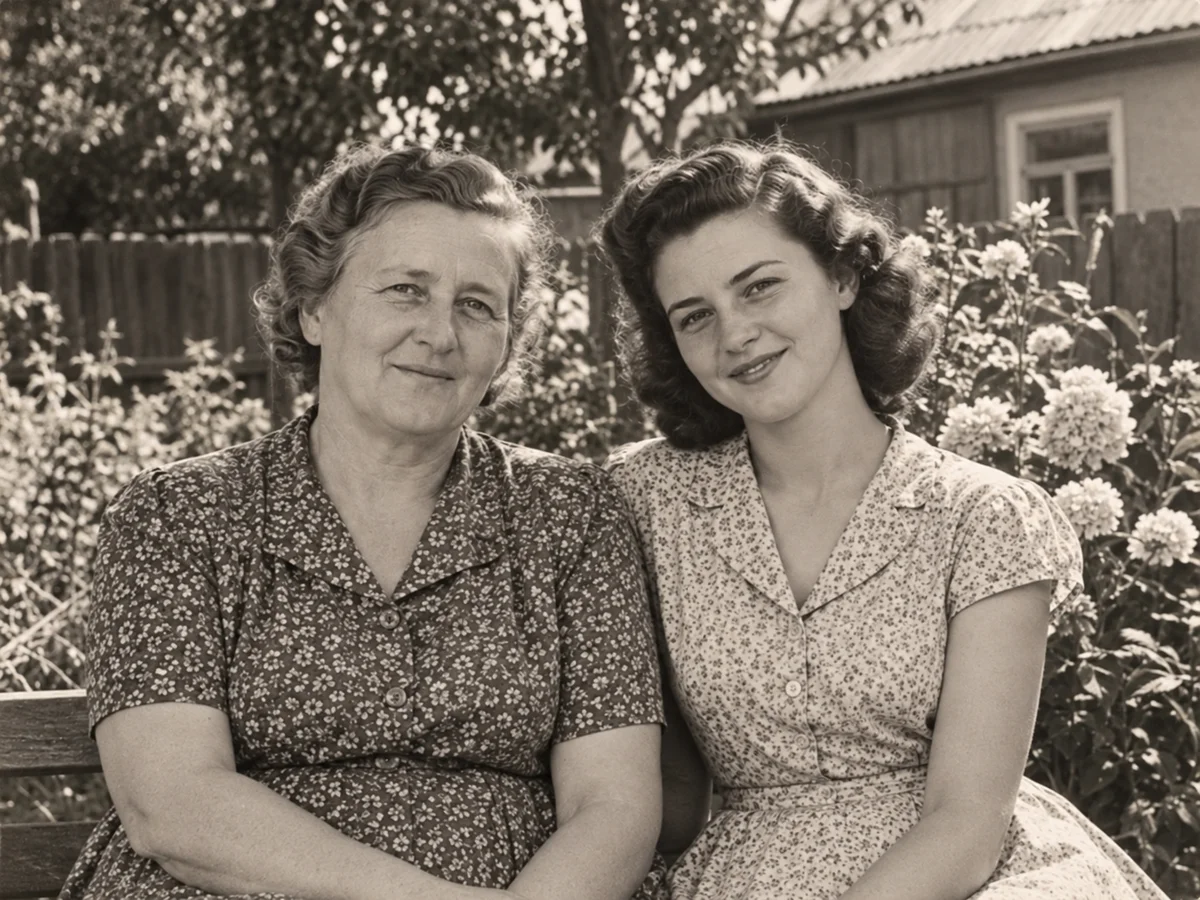
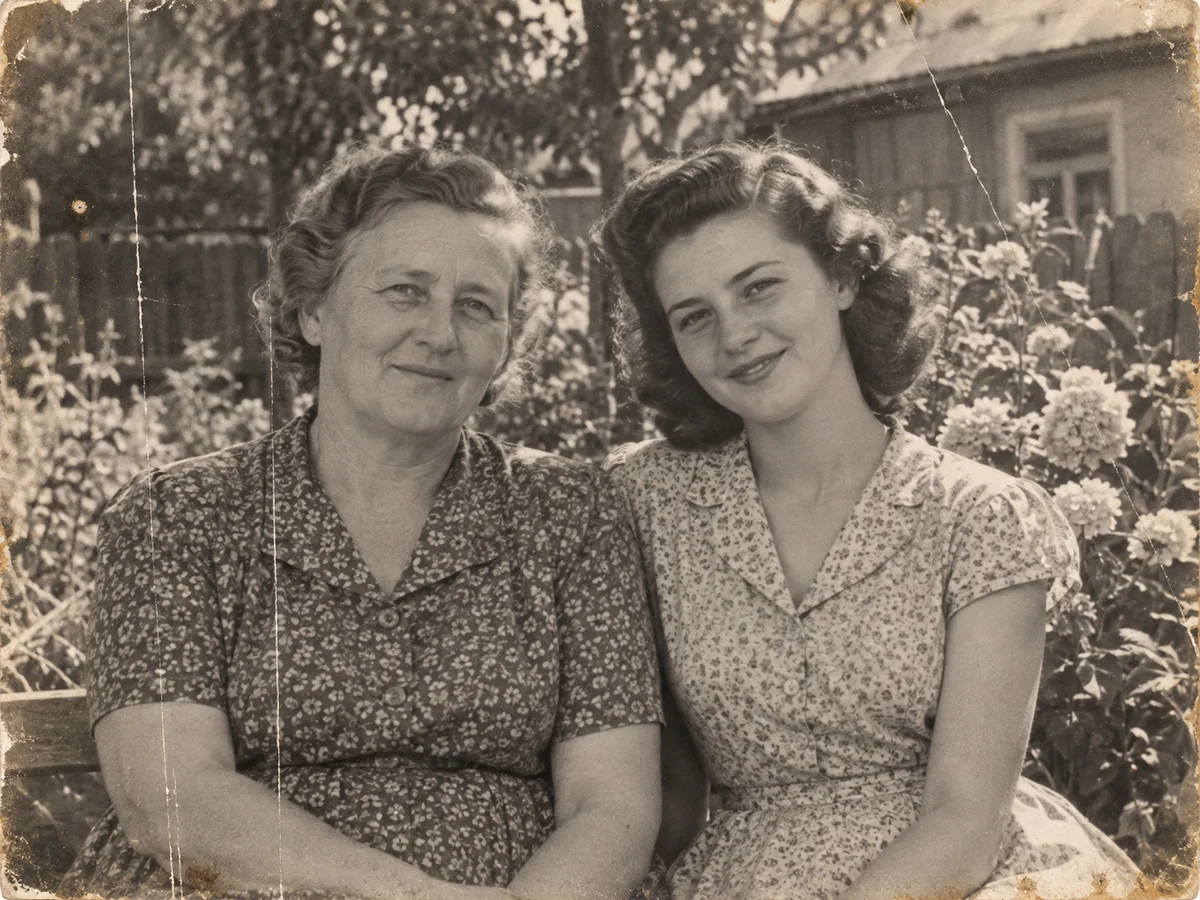 Before
AI-generated input · Actual GPT Image 2 / 1K restoration. Results vary.
Loading available models…
Two daily free edits are shared across all Enpix tools. 0/2 remain today.
Old photo restoration works on the digital copy of a print. Different kinds of wear need different care; start with the clearest scan you have.
Ask AI to reduce thin scratch lines, scattered spots, and light fold marks. A crease over a face needs closer review than a mark in the background.
Best starting point: the photo is mostly intact.
Lift a washed-out scan so people and surroundings are easier to see. Keep the original black-and-white or sepia character instead of turning every old photo into a modern portrait.
Keep an unedited scan alongside the result.
Restoration can make a soft portrait easier to read, but AI may interpret an unclear eye, smile, or strand of hair. Check recognizable features rather than choosing the smoothest-looking version.
Clearer detail is not proof of historical accuracy.
Small damaged areas may be filled using nearby shapes and tones. Large missing faces, writing, or important objects cannot be reliably recovered from a single photo.
Extensive damage may need careful manual retouching.
One photo at a time, with the original always available for comparison.
Choose a JPG, PNG, or WebP file up to 20 MB. Upload the full-resolution file instead of a screenshot or a copy repeatedly sent through messaging apps.
Use either of your two daily free edits with the free model and resolution shown, or sign in to use regular account credits for other options. Then describe any priorities: reduce scratches, keep the sepia tone, or leave facial features unchanged.
When processing finishes, use the comparison slider to inspect faces, clothing, and damaged areas. Download the result when it looks right and keep your original scan separately.
You do not need to alter the physical photograph. A cleaner input gives the model more visible detail to work with.
The most polished result is not always the most faithful one. AI reconstructs uncertain detail; it cannot know what was originally hidden by a scratch or a missing piece.
For irreplaceable records or badly damaged faces, use the AI version as a draft and consider manual restoration.
Your images are stored privately for processing. They are sent to our image-processing provider through KIE; processing does not happen entirely on your device.
Start with one photo, review what changed, and save the version you want to share.
Restore a photo