Skip to content

ENPIX / PHOTO EDITOR

AI Photo Editor Online

Upload a photo. Describe what you want to change. Compare the result with your original before you download.

A simple, prompt-based editor for one photo at a time.

  • JPG, PNG or WebP
  • Up to 20 MB
  • Cost shown before you edit
01 / CREATE YOUR EDIT

Make the edit yours

Upload a photo, then describe the change and what should stay the same.

Subject + change + what to preserve0/2000
Download format
This editChecking allowance…

Upload a photo and write an instruction to continue.

EDIT IDEAILLUSTRATIVE PREVIEW
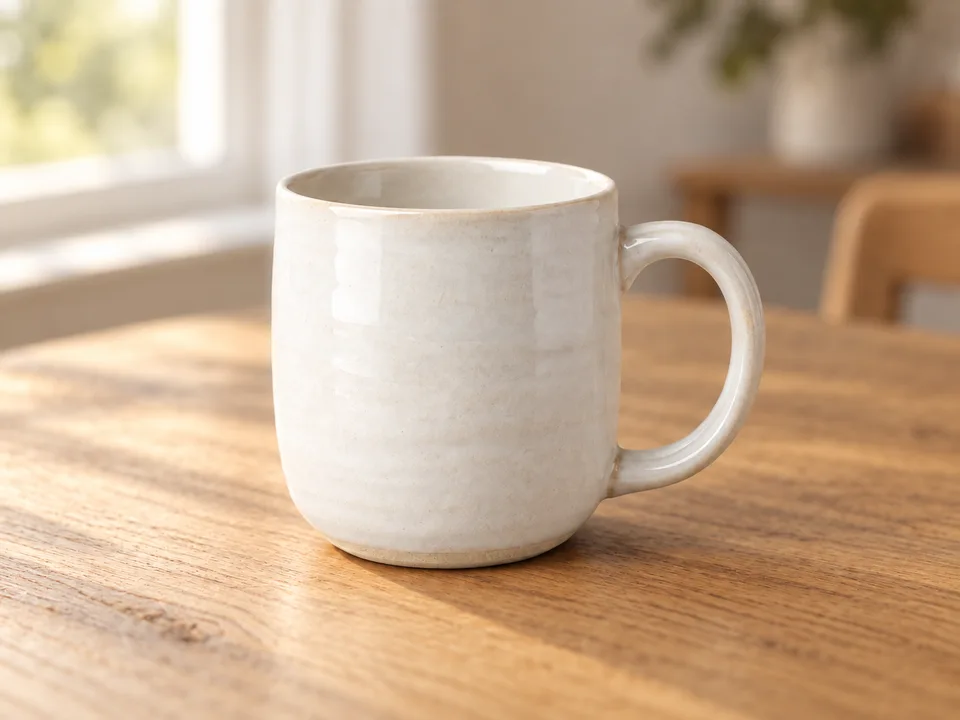
Illustrative edit of a white mug in a warm wooden settingILLUSTRATIVE EDIT · NOT AN ENPIX RESULT
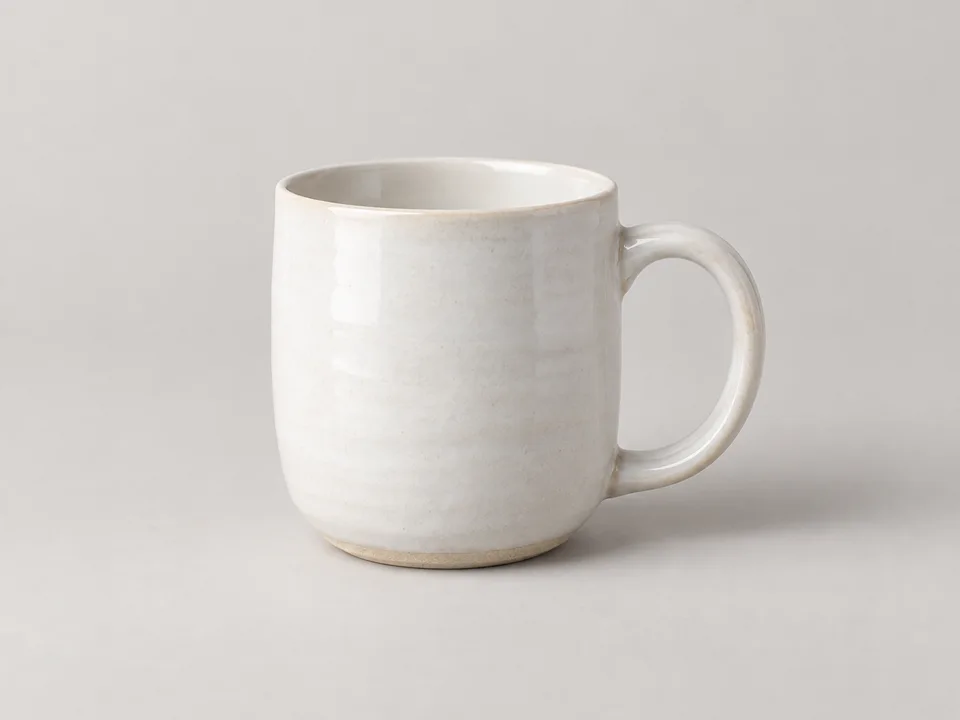
Source photo of the white mugSOURCE PHOTO
EXAMPLE PROMPT

Place the mug on a warm wooden table. Keep its shape and white color.

MAKE IT YOURS

Start with a clear instruction

A good prompt names the subject, the change, and what should stay the same. Try an idea below, then adapt it to your own photo.

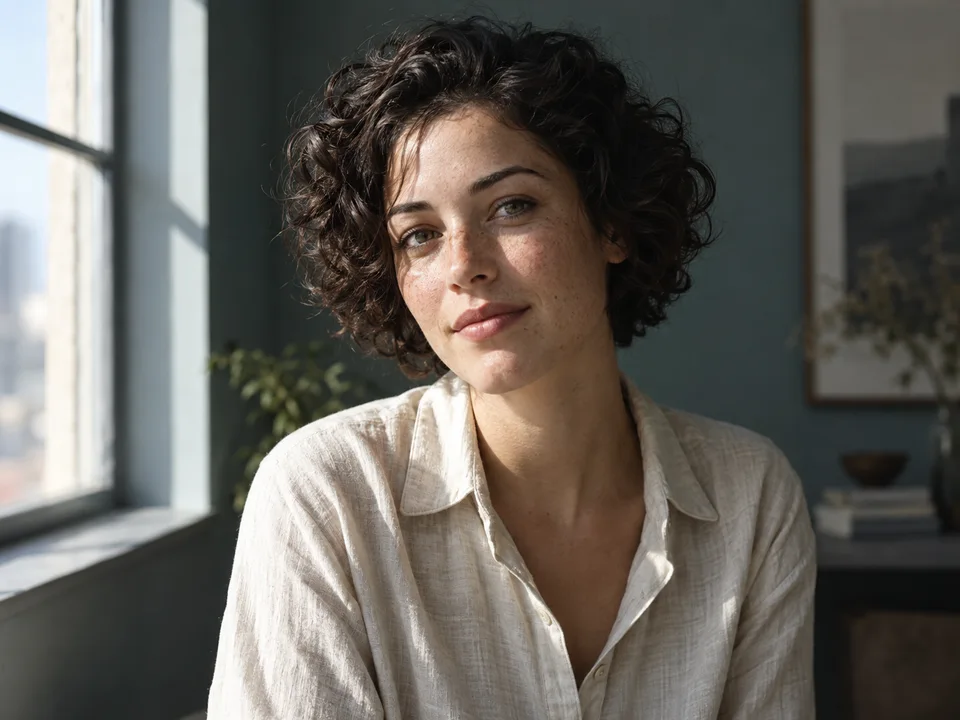
Portrait source photo for a lighting edit examplePORTRAIT

Portrait light

For a profile picture or an everyday portrait, start with the lighting. Ask for softer facial shadows or a more balanced exposure, and specify that the expression and skin tone should stay the same. A clear source gives the model more detail to work with than a small screenshot.

Generated source image · editing idea

“Soften harsh shadows while keeping skin texture natural.”

Check faces, hair, and skin texture.
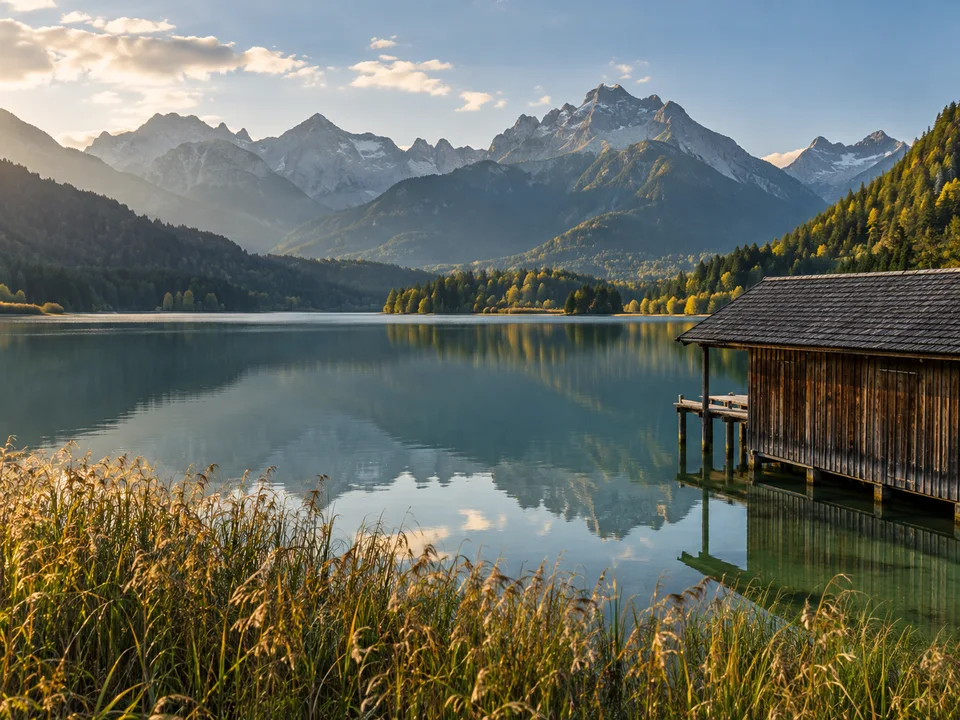
Landscape source photo for a warm lighting edit exampleSCENERY

Evening mood

Explore a different mood in a travel photo by describing the light and atmosphere. Keep the request focused: warm evening light, a softer sky, or a less distracting color cast. Name any buildings, reflections, or natural features whose appearance matters to you.

Generated source image · editing idea

“Warm the evening light without changing the landscape colors.”

Check the color of important objects.

Product source photo for a cleaner background edit examplePRODUCT

Product setting

Try a simpler setting for a product listing or a social post. Describe the surface, background, and direction of light rather than asking the model to make the image look better. Compare the shape, material, color, and label with the source before using the image to represent a real item.

Generated source image · editing idea

“Give this product photo a cleaner studio background; keep the item recognizable.”

Check logos, edges, and product details.

These source images were generated for this page to illustrate editing ideas. They are not Enpix results. Actual edits vary by photo and model.

01 / 02 / 03

How to edit a photo online

Three steps, with the original always available for comparison.

  1. 01

    Upload one photo

    Choose a JPG, PNG, or WebP image up to 20 MB. Start with the clearest original you have.

  2. 02

    Describe the change

    Write one specific request. Choose an available model and output size, then check the credit cost before submitting.

  3. 03

    Compare and save

    Review the result against your original. If it works for you, download a PNG, JPG, or WebP copy.

A useful prompt pattern

Subject + requested change + what to preserve

Get more control with a better photo editing prompt

You do not need editing jargon. A short, concrete instruction gives the AI a clearer target than a long list of competing changes.

  1. 01

    Name the change

    Replace vague requests such as “make it professional” with an observable change. For example, ask to soften the shadow on the face or place the mug on a wooden table. Begin with one goal so you can judge whether that specific edit worked.

  2. 02

    Name what should stay

    Mention the details you care about: the subject’s expression, clothing color, product proportions, or the original composition. Preservation instructions guide the model, but they cannot lock pixels. Keep the source open for comparison and inspect important details.

  3. 03

    Refine one thing at a time

    If a result changes too much, return to the original and narrow the request. If the effect is too strong, describe a subtle adjustment. Check the cost before another submission; a new request is a separate edit, not a free undo or a layered adjustment.

When to use an AI photo editor

Choose the workflow that matches how much control your image needs.

Describe a visual change

Prompt-based editing suits exploring a new background, adjusting a photo’s mood, or trying a different lighting treatment without learning a panel of editing controls. You upload an existing photo and describe a direction; the model interprets both to generate a result you can compare.

Keep precise work in a manual editor

Use a traditional editor when you need exact crops, editable layers, fixed brand colors, or pixel-level retouching. This page has no brush or mask to select an exact region. For a single goal such as removing a background or improving clarity, use the focused tools linked below.

Product source photo for detail review

These source images were generated for this page to illustrate editing ideas. They are not Enpix results. Actual edits vary by photo and model.

CHECK BEFORE YOU SAVE

Look closely before you use the result

AI interprets the source and your instruction. It may change details you wanted to preserve. Zoom in on faces, hands, lettering, brand marks, and object edges. Keep your original file.

  • Faces and expressions
  • Hands and fine edges
  • Text and small details
  • Logos and product labels

BEFORE YOU START

Files, credits, and privacy

One image at a time

Upload a JPG, PNG, or WebP file up to 20 MB. This is a prompt-based edit, not a layer or brush editor.

See the cost first

The selected model and output size set the credit cost. The editor shows the current cost before you submit.

Download within 7 days

Submitted originals and results are available for 7 days from task creation. Processing uses an image service provider; files are not kept only on your device.

Read our Privacy Policy

Photo editor questions

Answers to help you decide whether this editor fits your photo.